Required Windows Update and Extended Reboot Time
A required Windows update will be deployed to all computers in the organization. This update will require a reboot and may take significantly longer than a normal restart to complete. During the final update process, your computer will be unavailable while Windows applies the update and performs one or more restarts.
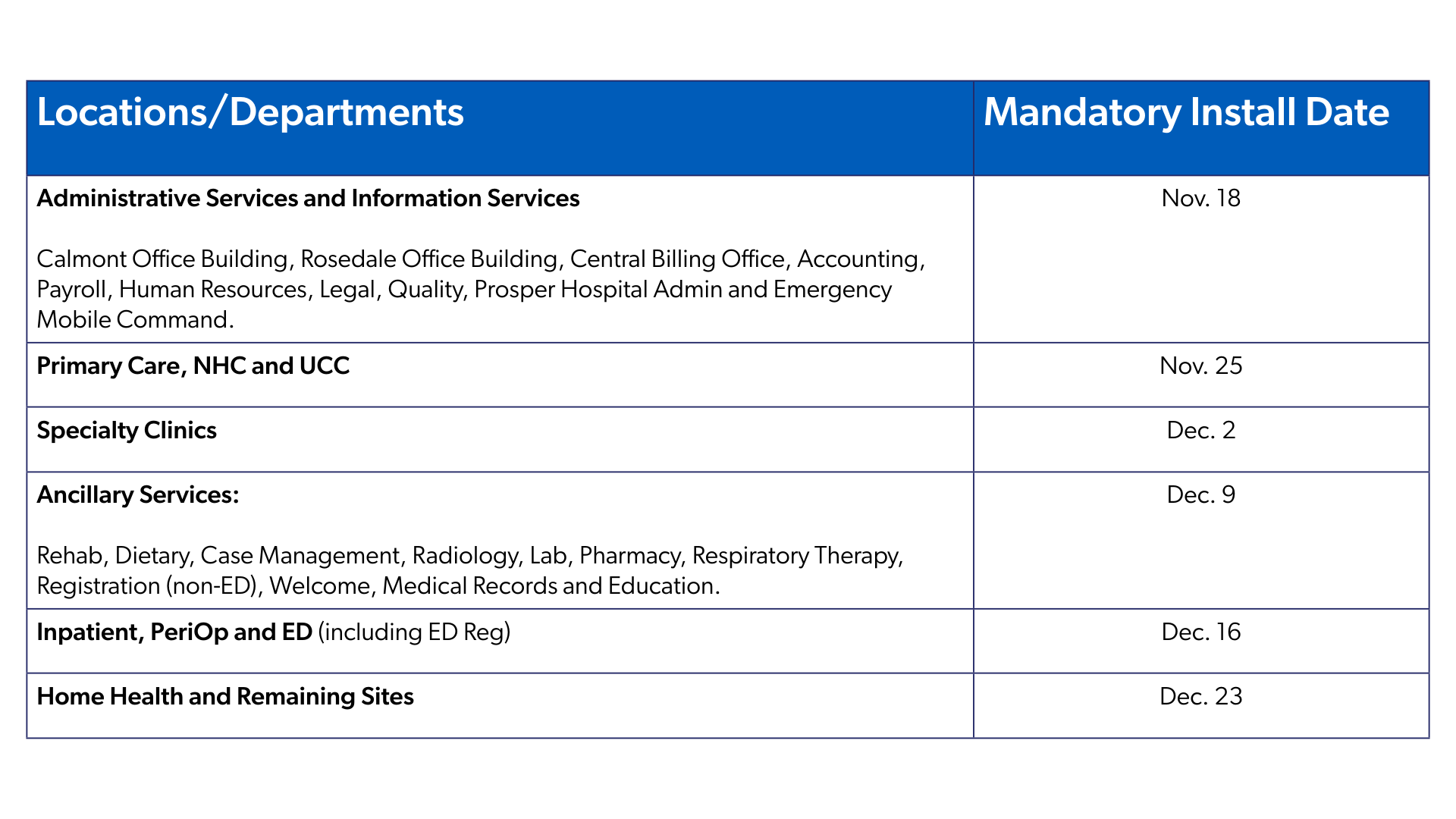
The entire Health Care System will be able to begin self-installing the update starting Nov. 11. After this, the update will follow a rolling schedule of forced installation dates by location. Please see the schedule at the bottom of this email for your location’s deadline.
To minimize disruption, we strongly recommend self-installing the update at a time that is convenient for you before your location’s deadline. Patient-facing areas should coordinate and stagger updates across department computers to help ensure needed computers remain available.
 What to Expect When You Self-Install
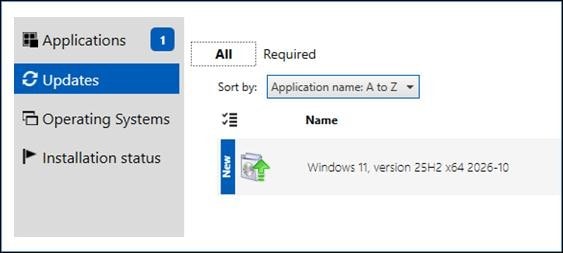
- Click the Windows icon & search for & open “Software Center”.
- Select Updates from the menu on the left.
- Select “Windows 11, version 25H2 x64 2026-10.”
- NOTE: some computers have already taken the full update. If you do not see the Windows 11 25H2 update in Software Center, the computer has already updated.
- If the update is not already downloaded to your computer, the update package will download before installation can begin. Download time will vary based on network speed and may exceed 5 hours when connected through VPN. If working remotely, disconnecting from VPN is recommended to improve download performance.
- Once the download is complete, the update will install in the background while you continue working.
- After the background installation is complete, users who are logged in will receive a 24-hour reboot notification.
If You Wait for the Mandatory Installation
If you have not self-installed the update before your location’s deadline, the mandatory update process will begin.
- The update will reach its mandatory installation deadline based on your location’s scheduled date.
- Once the update has downloaded, it will install in the background while the computer remains available for use.
- After the background installation is complete, users who are logged in will receive a 24-hour reboot notification.
- When the reboot occurs, the computer will be unavailable while Windows completes the update.
During the Reboot
Regardless of whether you self-install or wait for the mandatory installation:
- Your computer will restart and become unavailable.
- You will see a black screen with Windows update status messages while the update is being applied.
- The update process may take significantly longer than a normal restart.
- After all updates have been installed, the computer will perform a final reboot and return to the Windows sign-in screen, ready for use.
Recommended Action
Plan ahead and self-install the update before your location’s mandatory installation date. Choose a time when you can accommodate the extended reboot period.
For patient-facing departments, please stagger updates across department computers so that all computers are not completing the update at the same time.
Thank you for your patience and cooperation as we complete this important Windows update.
Mandatory-Install Schedule
Computers that have not completed the update will move to mandatory installation according to the following schedule. Plan ahead, stagger your department’s updates and self-install before your location’s deadline to help maintain access to the computers your team needs.