M365: You Can Now Self-Install Microsoft 365 Apps
Don't wait to install Microsoft 365 Apps. You have the flexibility to self-install M365 apps now at a time that fits your schedule. You can choose a time that works best for you—perhaps during a lunch break or at the end of your shift.
As we continue to modernize our technology tools across Cook Children’s. Microsoft Office 2016 — the version currently installed on most computers — has reached end of service life and is no longer supported by Microsoft. To stay secure and compatible with our new Microsoft 365 email and collaboration environment, we’re transitioning to the latest Microsoft 365 (M365) desktop applications.
What’s Changing
You can now self-install Microsoft 365 (M365) Apps directly from the Software Center on your Cook Children’s computer — no IS request required. The latest versions of Word, Excel, PowerPoint, Outlook, OneNote, and Teams are available for installation.
Note: Microsoft Access will not be included in this installation.
Access databases are self-managed and not supported by IT, which creates security and support risks since we have no visibility into how data is used or stored. We’re actively contacting Access users to discuss options for moving data to more secure, supported platforms.
If you use Microsoft Access, you can continue using Office 2016 for now while IT works with you on next steps.
As Cook Children’s IT continues to adopt Microsoft tools, we’re taking a thoughtful, step-by-step approach. Updating Office to a supported platform is our top priority right now. While OneDrive offers great collaboration potential, we’ve temporarily paused its rollout so we can focus on getting the essentials right first. More updates will follow as we continue this modernization journey.
When can you install M365 Apps?
Starting Wednesday, November 12, you can begin installing Microsoft 365 Apps.
All users will need to complete this installation before Cook Children’s upgrades to Windows 11 in early 2026.
What you need to know before installation
- For best performance: Install M365 Apps while connected to the Cook Children’s network with an ethernet cable (i.e. a desktop computer or docked laptop). Wi-Fi installation is possible, but may be slower.
- Working from home? Ensure you're connected to the Cisco VPN before starting the installation.
- When you are ready to install M365 Apps close all Microsoft Office applications. This will ensure a smooth installation process.
- Installation time: The installation may take 10–20 minutes, depending on your system and network connection.
How to install Microsoft 365 Apps
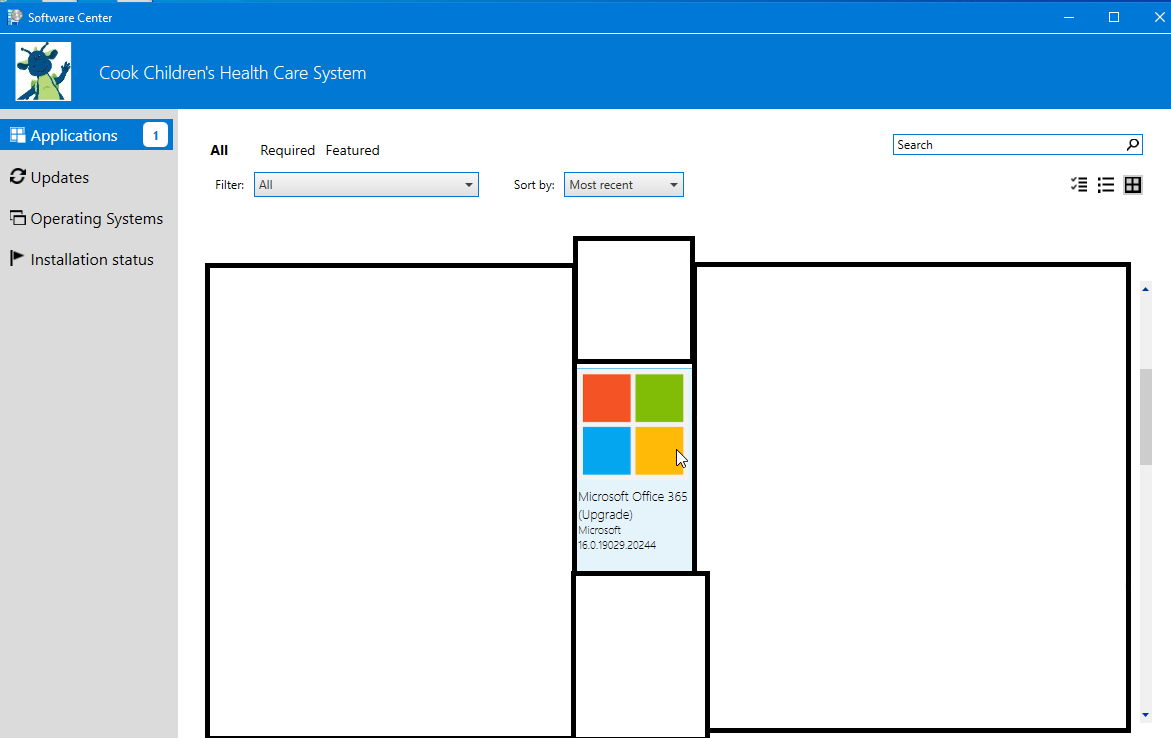
- Open the Software Center (search for “Software Center” in the Windows Start menu).
- Go to the Applications tab.
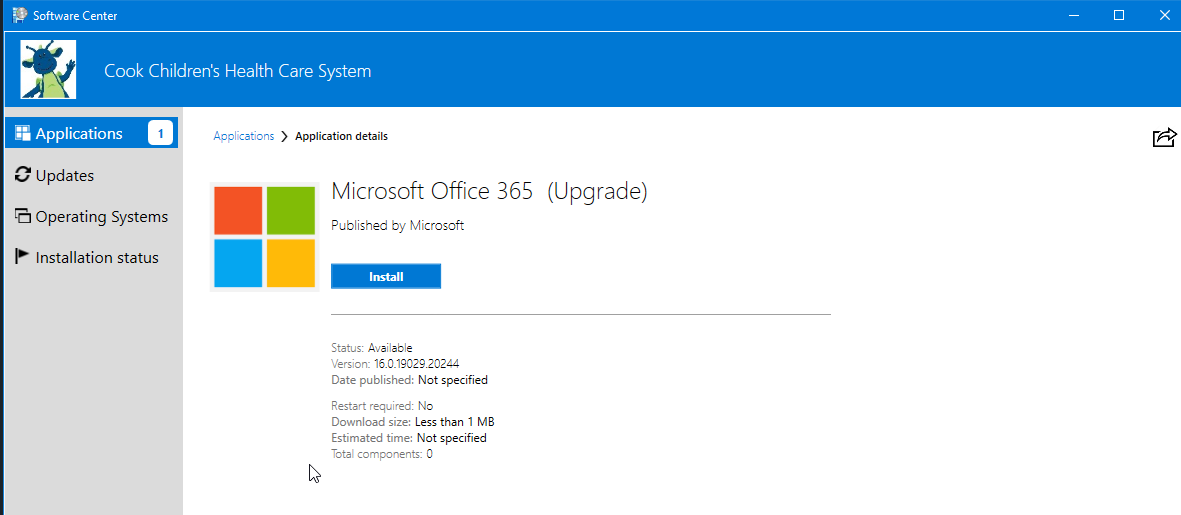
- Find Microsoft Office 365 (or Microsoft M365 Apps for Enterprise).
- Click Install and follow the on-screen instructions.
- Once complete, sign in with your work account to activate the apps.
Need help?
For help and training tools on Microsoft 365, please click here for the Microsoft Support website.
If you experience any issues, please contact the IS Service Desk.