
Important Announcement: Microsoft 365 (M365) Rollout Information
Heads up: Your mailbox is moving to Microsoft 365. An email is coming soon from Internal Communications, and you'll want to read it carefully to prepare for the change. This email is not spam or phishing.
The email mailbox moves will come in weekly waves to different user groups across Cook Children’s. You will get an email when it is your turn. Until you receive that email, there is no action on your part.
The move from your old email service to Microsoft 365 (M365) is underway that will be a major change in the way you access information.
As part of this transition, we are moving from Exchange 2016 to cloud-based M365. This change brings enhanced access to Microsoft Office tools online, including Word, Excel, PowerPoint, and Outlook, along with limited access to OneDrive for file creation, sharing, and collaboration. Click here for M365 Mobile Device Resources.
In addition to email and calendar services in the cloud, the M365 team includes:
- New Microsoft 365 desktop applications
- Options for accessing email on mobile devices
Thank you for your continued support as we modernize our tools to better support collaboration and productivity.
The migration will come in weekly waves to different user groups across Cook Children’s through Sept. 30. You will receive a personal email when it is approaching the date and time for your mailbox’s migration. Until you receive that email, there is no action on your part.
The migration process for each batch of groups can take up to 24 hours.
ONCE YOU GET AN EMAIL THAT YOUR MAILBOX IS BEING MIGRATED:
Here are the actions required to make the move to Microsoft 365 on a computer and mobile device
Exempt employees will have access to our secure mobile services, which include Outlook email and calendar, and Microsoft Teams.
To get started, employees will need to follow these steps on their mobile device:
1. FIRST—Back Up Contacts: To prevent losing Outlook and personal contacts, it is crucial to first back up your device's contacts before the mailbox is migrated. You can backup phone and contacts any time before the migration. However, you must wait until after the time and date that your email is being migrated before attempting to change your phone's settings.
Here’s how to back up your contacts:
· Backup instructions for Apple and Android
Here is how to restore contacts if they are lost.
2. AFTER MIGRATION: Once your phone has been backed up and the mailbox has been migrated, you can proceed with reconfiguring your device to connect with Cook Children’s email.
3. Remove Existing Exchange Account: Delete your old Exchange account from your phone's built-in mail and calendar apps.
Here’s how to delete your old Exchange account:
· Apple Native Mail app account removal instructions
· Apple Outlook App account removal instructions
· Android Native Mail app account removal instructions
· Android Outlook App account removal instructions
4. Add New Microsoft 365 Account: Install the new Microsoft 365 app.
Here’s how to add your new Microsoft 365 account:
Non-Exempt (hourly) employees will only be able to access email and calendar via Outlook Web Access (outlook.office.com).
Non-exempt employees who need access to the Outlook and Teams apps should follow the Mobile Access Request process.
Exchange Mailbox Migration to Microsoft 365
What to Expect
The migration will occur whether Outlook is open or closed.
When your personal account migration is complete, you may see a pop-up message if you are currently working in Outlook. If you see this pop-up, simply close and restart Outlook on your device.
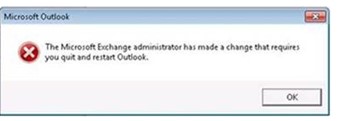
For the Outlook application on desktop computers
- Nothing will change with your desktop application for now. You’ll continue using Outlook 2016. The Microsoft 365 desktop applications will be coming later during this overall transition.
Do you own any Outlook distribution email groups? If so, you will not be able to make updates to these groups until all migrations are complete. Please submit a Service Desk ticket using the new ServiceNow Employee Center to have any updates made.
Please do not reply to the email. The mailbox is not being monitored.
Have questions? Need help? Place a Service Now ticket or call the Service Desk at 682-885-7999.